GoodNotes Digital Planner: Import and Setup Guide
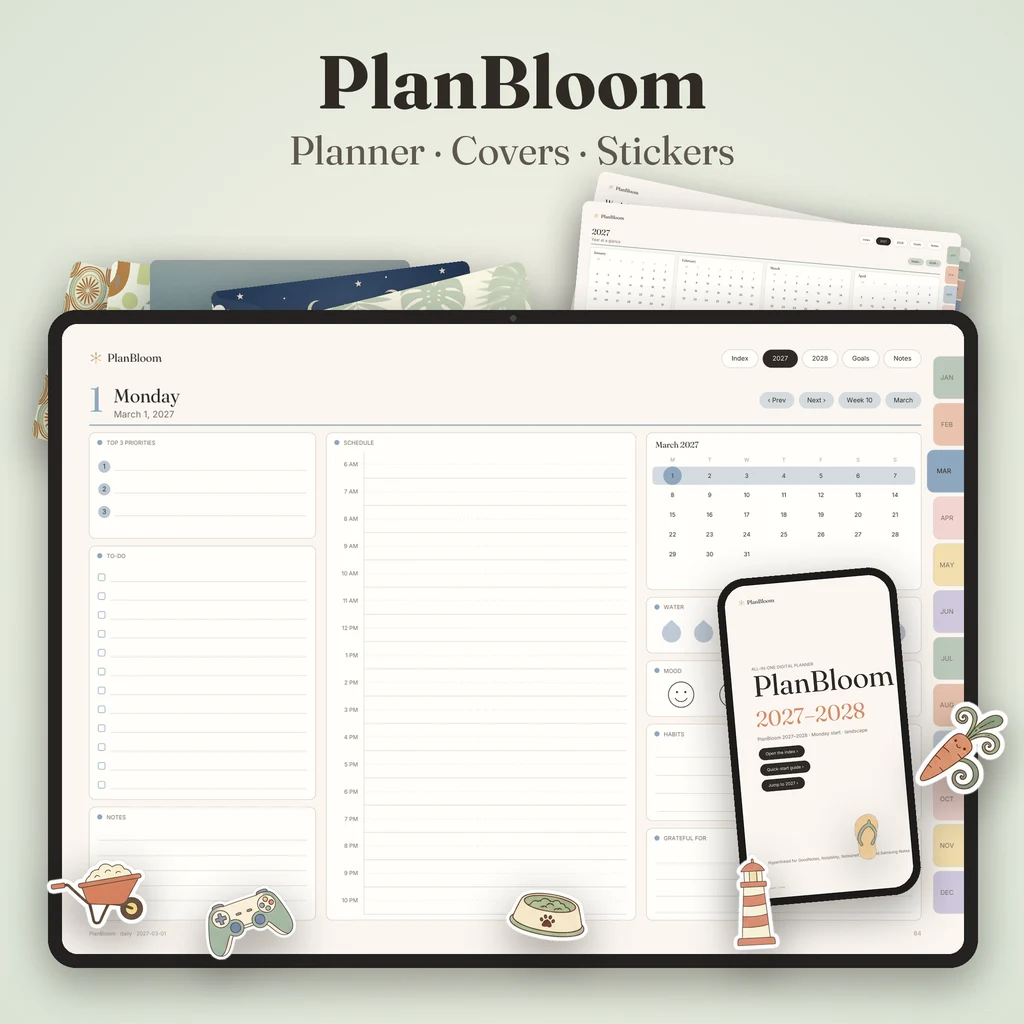
A GoodNotes digital planner is a hyperlinked PDF you import as a document. Once it's in, switch to reading mode and tap the month tabs, date numbers and top-bar buttons to move between year, month, week and day pages; switch to the pen to write. This guide covers the import steps, how to avoid the common link problems and how to personalize the planner, using PlanBloom All-in-One Digital Planner as the example.
What you're importing
PlanBloom All-in-One Digital Planner comes as separate PDF files for each combination of layout and week start:
- Dated 2027-2028 in landscape or portrait, Monday or Sunday start (952 pages each).
- Undated in the same four layouts (481 pages each).
- An 18-page Quick-Start Guide, with a page for GoodNotes.
The planner files are standard PDFs with internal link annotations. Landscape pages are 1194 × 834 points; portrait pages are 834 × 1194. Choose one layout and import that file; you don't need all four.
Import in GoodNotes
- Save the PDF. Use Files, iCloud Drive or another cloud folder. If you received a ZIP, unzip it first.
- Open GoodNotes and tap the plus button, then choose Import. You can also share the file from Files to GoodNotes.
- Select the planner and choose to import it as a new document.
- Wait for it to finish. The first load of a large file can take a few seconds.
- Open the document and look at the cover and index.
Keep the original PDF in a safe folder as a master copy.
Make the links work
Links are tap targets, and GoodNotes uses the same gestures for drawing:
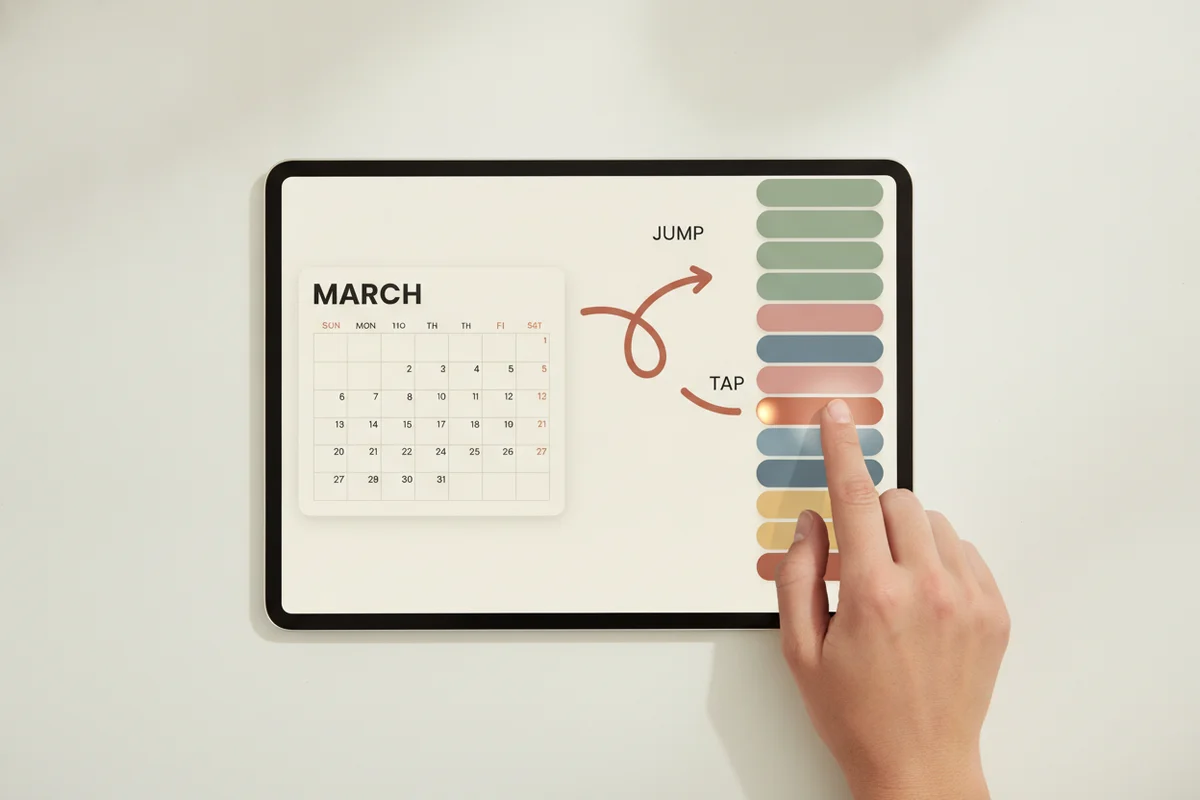
- Make sure the pen, highlighter and eraser aren't selected. Use reading mode or the hand tool if your version has it.
- Tap a month tab, a date number or a top-bar button. The page should change immediately.
- Pick the pen again to write.
If a tap draws a dot, a writing tool is still active. Erase the dot and switch modes. If links do nothing at all, update the app, re-import as a new document, or test the same file in Xodo. Link support depends on the app and its version.
How the planner is organized
| Level | What you tap |
|---|---|
| Year | Month names and dates on the yearly overview |
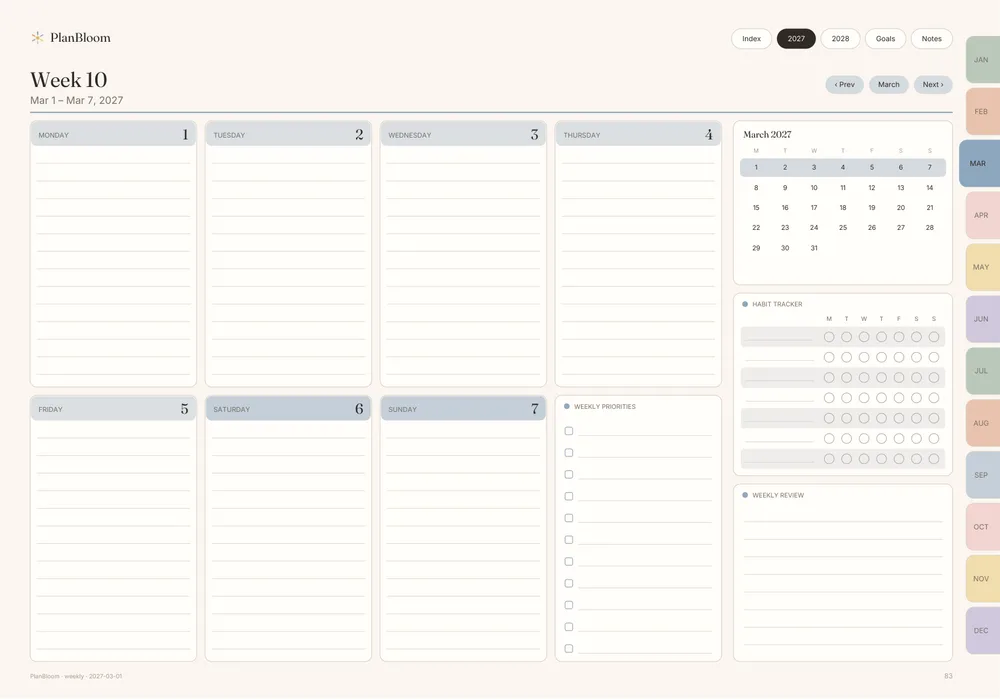
| Month | A date for its day, a week number for the weekly spread |
| Week | Any day box |
| Day | Prev, Next, Week and Month buttons |
| Anywhere | Month tabs on the right edge; Index, years, Goals and Notes in the top bar |
Mini calendars on day, week and plan pages let you jump to any date of the month. The Index lists every month, every week and the notes pages.
Personalize it
- Cover: insert a PNG on page one with the image tool. Keep the top-bar buttons visible. See GoodNotes covers.
- Stickers: place transparent PNGs and save favorites in the elements library. See GoodNotes stickers.
- Templates: duplicate pages from the 120 paper templates, 48 notebooks, Student pack and Work pack. See GoodNotes templates.
- Extra pages: duplicate a notes page when you run out of space. Links on duplicated pages keep their targets.
What's in the package
Besides the planners, PlanBloom All-in-One Digital Planner includes 48 tabbed notebooks (12 themes in lined, grid, dot and mixed), 120 paper templates, a Student pack and a Work pack of 25 pages each, a Home Management Binder as a gift (40 templates, 46 pages), 160 digital covers and more than 5,500 transparent PNG stickers. It also includes a Companion web app with a setup wizard, Today view, focus timer, brain dump tool, 30-day habit tracker, nine guides and a 2027-2028 calendar with US holidays. Items such as the Finance & Goals Pack, Lifetime Updates, the Sticker, Icon & Cover Mega Pack and the ADHD & Wellness Bundle are separate add-ons.
Check the limits of your plan
GoodNotes has a plan you can use without paying and paid plans, and limits such as the number of notebooks and the size of imported files can vary. The dated planner files are about 12 MB each; the undated ones about 6 MB. See does GoodNotes cost money for what to check on the official pricing page.
Honest limits
The links are standard internal link annotations, which GoodNotes respects. The planner was checked with a PDF viewer and validated link by link, but it hasn't been tested in every version of every notes app, so your own test with a month tab is the best check. If you use another app, see GoodNotes vs Notability or the iPad planner guide.
Daily use
- Open in reading mode, tap to the day, pick the pen.
- Do your weekly review on the weekly spread.
- Use the Index when you're lost.
- Don't write on the tabs.
- Back up with GoodNotes' backup setting and keep the master PDF in the cloud.
For a comparison of what to look for in a planner file before you pick one, see the best digital planner for iPad.